
Turn Agent Monitoring on or off
You can stop and restart monitoring at three levels. History and settings are always kept.
| Level | Where | Off means |
|---|---|---|
| The whole console | Site Settings › Plugins, or the controller command | No server is monitored; the Agent Monitoring containers stop |
| One or more servers | Servers page, the Monitoring switch | Those servers show Paused: no reports, no alerts |
| On the server itself | atglance agent stop, uninstall |
The agent does not run on that server |
The whole console
In the console
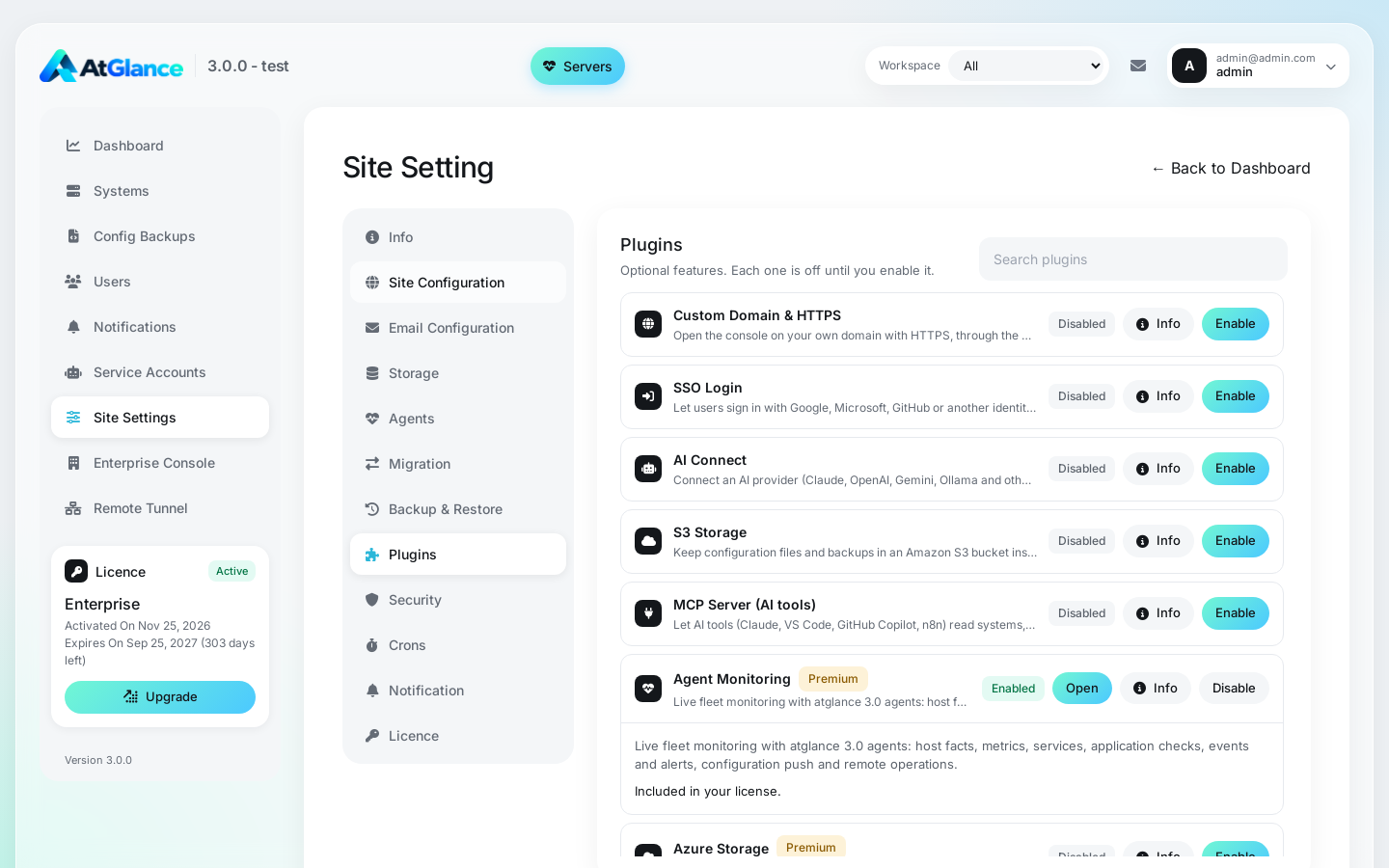
Site Settings › Plugins › Agent Monitoring › Disable (super admin). To turn it on again: Enable.
From the command line
Works also when the web console is not reachable:
docker exec ce-atglance-controller php artisan agents:plugin off
docker exec ce-atglance-controller php artisan agents:plugin on
docker exec ce-atglance-controller php artisan agents:plugin status
status prints the switch and each container:
Agent Monitoring is on.
  ce-atglance-tsdb                 running
  ce-atglance-agent-monitoring     running
  ce-atglance-agent-gateway        running
  ce-atglance-agent-worker         running
When you turn it off:
- connected agents are told to stop reporting, and their connections close;
- the controller stops
agent-worker,agent-gateway,agent-monitoringandtsdb; - servers, history and settings are kept; the Servers item leaves the top bar.
When you turn it on again: the containers start (tsdb first) and the agents reconnect within a few
minutes, with nothing to do on the servers.
If an update starts the containers while Agent Monitoring is off, the console stops them again within a minute.
One or more servers (pause and resume)
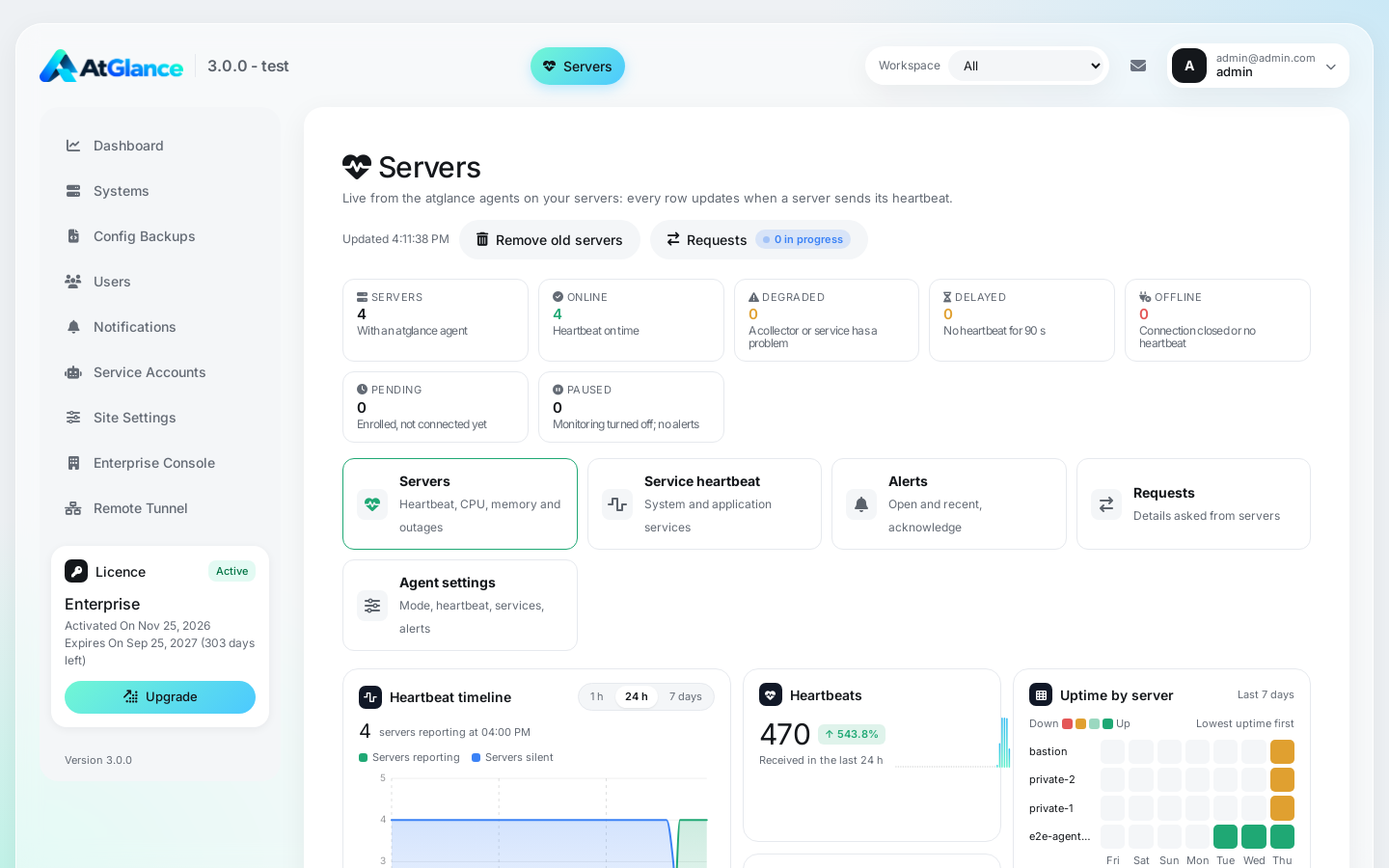
On the Servers page, each server has a Monitoring switch:
- Off: confirm the question. The server shows Paused (its own tab and counter), stops reporting, gets no alerts, and its open alerts are resolved. Its history stays.
- On: the server gets its full configuration again and goes back through the normal states (Online within one heartbeat).
To change several servers at once, tick them and use Monitoring on or Monitoring off in the bar above the list. Administrators and workspace admins (for their workspace's servers) can change it.
A paused server stays paused across agent restarts and reconnects, until you turn it on again.
On the server
sudo atglance agent status      # running? connected?
sudo atglance agent stop        # stop the agent now (it starts again at boot)
sudo atglance agent start       # start it again
sudo atglance agent restart
sudo atglance agent logs -n 50  # the last log lines; -f to follow
To take the agent off a server:
sudo atglance agent uninstall           # remove the service
sudo atglance agent uninstall --purge   # also delete its local data
To put it back (re-enable), install it again; the server keeps its registration:
sudo atglance agent install
sudo atglance agent start
While the agent is stopped, the console shows the server as Delayed, then Offline (after the offline threshold in Site Settings › Agents), and may alert. To stop a server on purpose without alerts, pause it in the console first.
Remove a server for good
On the Servers page, Remove old servers removes one offline server, or every server offline for more than a number of days. Connected servers are never removed. Registered systems and configuration backups are kept.
Which one do I need?
| I want to… | Do this |
|---|---|
| Stop all monitoring for a while (maintenance, licence change) | Plugins › Disable, or agents:plugin off |
| Stop alerts from one server during its maintenance | Servers › its Monitoring switch off; on again afterwards |
| Restart a misbehaving agent | sudo atglance agent restart on that server |
| Retire a server | sudo atglance agent uninstall --purge on it, then Servers › Remove old servers |
| Bring a server back | sudo atglance agent install && sudo atglance agent start, and its Monitoring switch on |
See also: