
Bastion in Azure or AWS
How to connect Remote Tunnel to a cloud network through a bastion VM (jump host), and from it reach the internal VMs that have private IPs only.
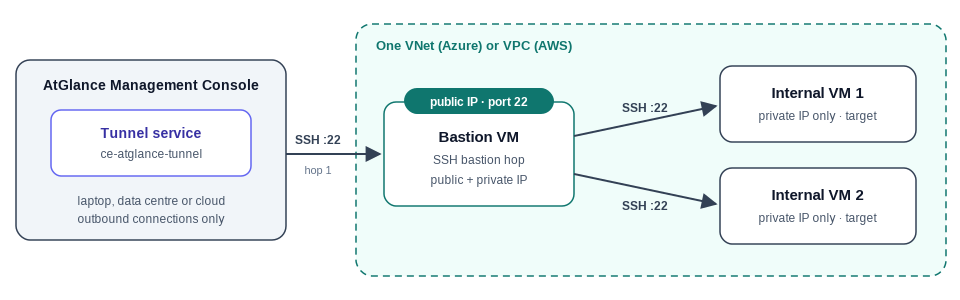
- Bastion: the VM with a public IP. It is an SSH bastion hop in Remote Tunnel.
- Internal VMs: the targets, with private IPs only. They are in the profile's allow-list.
- Connections: the console opens every connection outbound. Nothing is installed on the VMs, and no inbound port opens anywhere except port 22 of the bastion.
- Keep-alive: the tunnel service sends SSH keep-alives every 30 seconds on the bastion and target connections, so idle sessions survive cloud NAT and firewalls.
This is the bastion VM pattern. The managed services Azure Bastion and AWS Systems Manager Session Manager are not SSH jump hosts; they are planned as the Cloud-native access profile type (coming soon).
The other direction is different: for internal VMs to reach the console (the atglance CLI or agents), see
"Internal VMs reaching the console" below.
Before you start
-
Console: console 3.0.0 or later, with a licence that includes Remote Tunnel.
-
Remote Tunnel on: Site Settings > Plugins > Remote Tunnel. Check that its containers run:
docker exec ce-atglance-controller php artisan tunnel:plugin statusce-atglance-remote-tunnelandce-atglance-tunnelmust berunning(started withdocker-compose.tunnel.yml). -
Outbound access: the console host must reach the bastion's public IP on TCP port 22. A console on a laptop or in a private network works, because the connection goes outbound.
-
Your public IP: find the IP address your console's traffic leaves from (
curl ifconfig.meon the console host). The bastion's firewall rule allows only that address.
Part 1: Azure
1.1 The network and the VMs
| Resource | Setting |
|---|---|
| Virtual network | One VNet (for example 10.20.0.0/16) and one subnet (10.20.1.0/24) |
| Bastion VM | Ubuntu LTS, Standard_B1s is enough. A static public IP (Standard SKU) and a private IP in the subnet |
| Internal VMs | The same subnet, no public IP |
| NSG on the subnet | Inbound TCP 22 from your console's public IP to the bastion's private IP. Inbound TCP 22 from VirtualNetwork to VirtualNetwork |
| Outbound | A NAT gateway on the subnet if the internal VMs need the Internet (updates). New Azure VMs without a public IP get no default outbound access |
| OS disk | At least 30 GB. Azure refuses an OS disk smaller than the Ubuntu image |
Architecture:
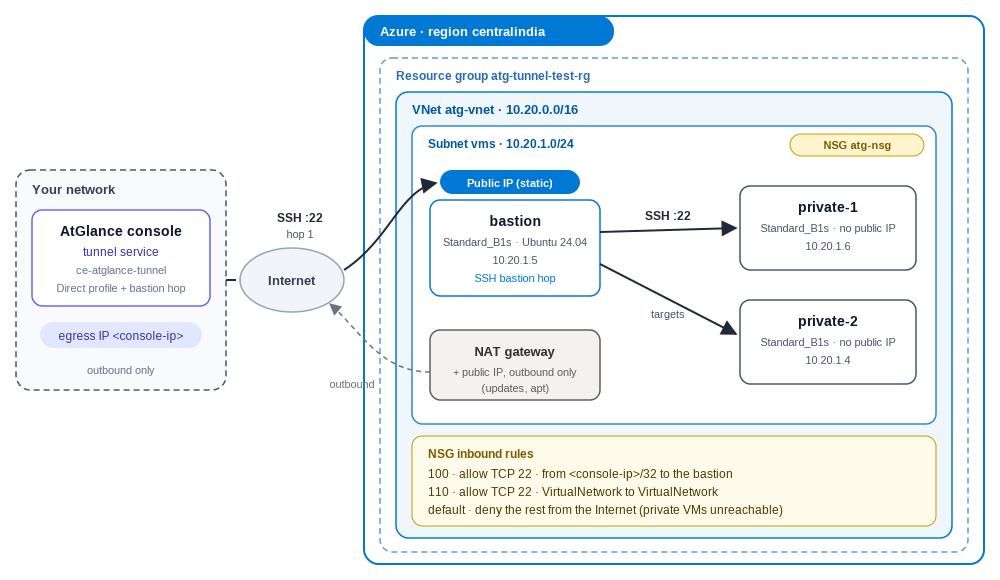
Check the network from your own machine before you go to the console:
ssh adminuser@<bastion-public-ip>
ssh -J adminuser@<bastion-public-ip> adminuser@10.20.1.6
1.2 Set up Remote Tunnel
Follow Part 3 with:
| Field | Azure value |
|---|---|
| Site subnets, allow-list network | 10.20.1.0/24 |
| Bastion hop | <bastion-public-ip>:22, user adminuser |
| Target login user | adminuser |
Part 2: AWS
2.1 The network and the instances
| Resource | Setting |
|---|---|
| VPC | One VPC (for example 10.30.0.0/16) |
| Public subnet | 10.30.1.0/24 with a route 0.0.0.0/0 to an Internet gateway. The bastion lives here |
| Private subnet | 10.30.2.0/24 with a route 0.0.0.0/0 to a NAT gateway (only if the instances need the Internet). The internal instances live here |
| Bastion instance | Ubuntu LTS, t3.micro or t2.micro, in the public subnet, with an Elastic IP |
| Internal instances | The private subnet, no public IP |
Security group bastion-sg |
Inbound TCP 22 from <console-public-ip>/32 |
Security group internal-sg |
Inbound TCP 22 from bastion-sg (the security group as the source) |
| Key pair | Create an ED25519 key pair (for example atg-tunnel) and keep the .pem file |
AWS Ubuntu images use the user ubuntu and accept only key login (no password).
Architecture (region ap-south-1 as an example):
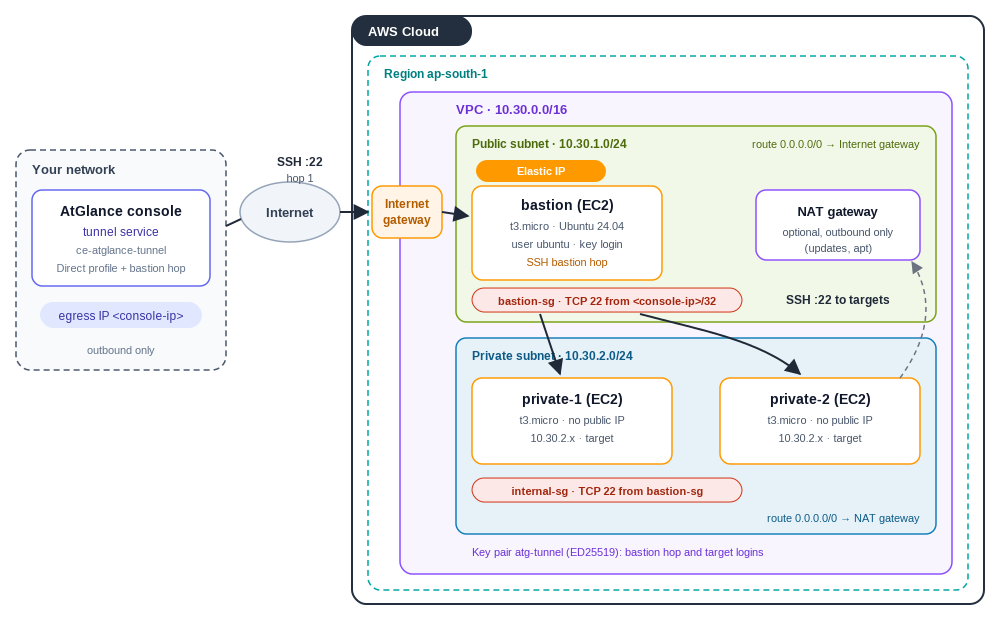
For internal instances that need the Internet, add a NAT gateway in the public subnet. Then route the
private subnet's 0.0.0.0/0 to it.
Check the network from your own machine:
ssh -i atg-tunnel.pem ubuntu@<bastion-elastic-ip>
ssh -i atg-tunnel.pem -J ubuntu@<bastion-elastic-ip> ubuntu@10.30.2.10
The -J hop needs the key in your SSH agent: ssh-add atg-tunnel.pem.
2.2 Set up Remote Tunnel
Follow Part 3 with:
| Field | AWS value |
|---|---|
| Site subnets, allow-list network | 10.30.2.0/24 (add 10.30.1.0/24 for a terminal on the bastion itself) |
| Bastion hop | <bastion-elastic-ip>:22, user ubuntu, authentication SSH key: paste the content of atg-tunnel.pem |
| Target login | user ubuntu, kind SSH key, the same key (or the console SSH CA, below) |
Part 3: Set up Remote Tunnel (Azure and AWS)
Every step is in the console: Remote Tunnel (/admin/tunnel).
3.1 Create the Site
- New Site: a name (for example
azure-testoraws-test) and the private subnet(s).
3.2 Create the profile
- New profile, type Direct, and choose the Site.
- Allow-list: fill in the network and the ports, for example
10.20.1.0/24and22. Do not leave the row empty: a profile with an empty allow-list refuses every target ("… is not in this profile's allow-list"). - To open a terminal on the bastion itself, also add its address, for example
<bastion-ip>/32port22. The bastion is only a hop; it is not a target unless it is in the allow-list.
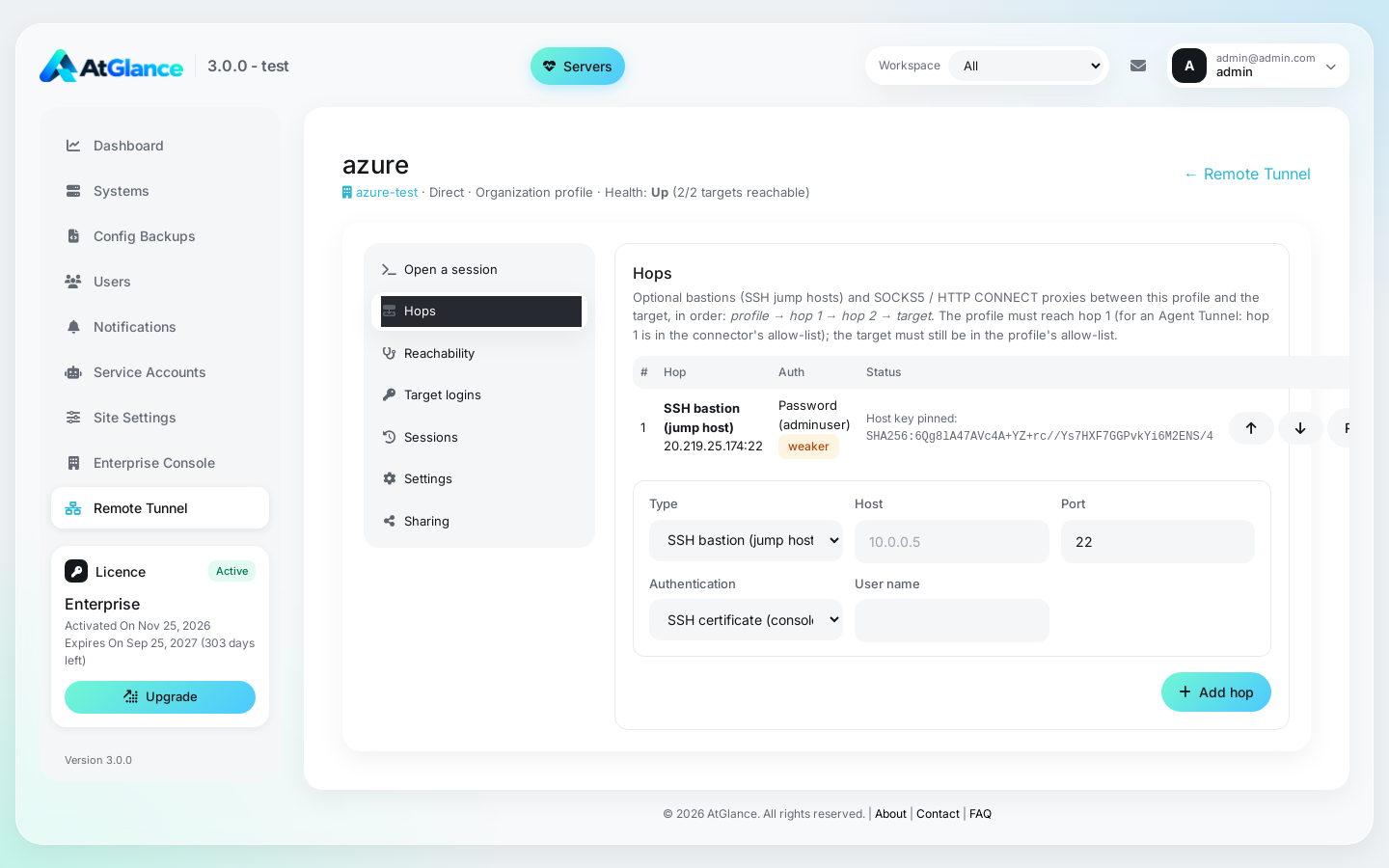
3.3 Add the bastion hop
On the profile page, Hops tab:
- Choose type SSH bastion (jump host).
- Enter the host (the bastion's public IP) and port
22. - Enter the user (
adminuseron Azure,ubuntuon AWS). - Choose the authentication:
- SSH certificate (recommended): the console signs a 5-minute certificate for each session and stores no secret. The bastion must trust the console SSH CA (3.6).
- SSH key: paste the private key, for example the AWS
.pem. Ed25519 keys are supported. - Password: works on Azure VMs created with a password. The console marks it as weaker.
3.4 Add the target logins
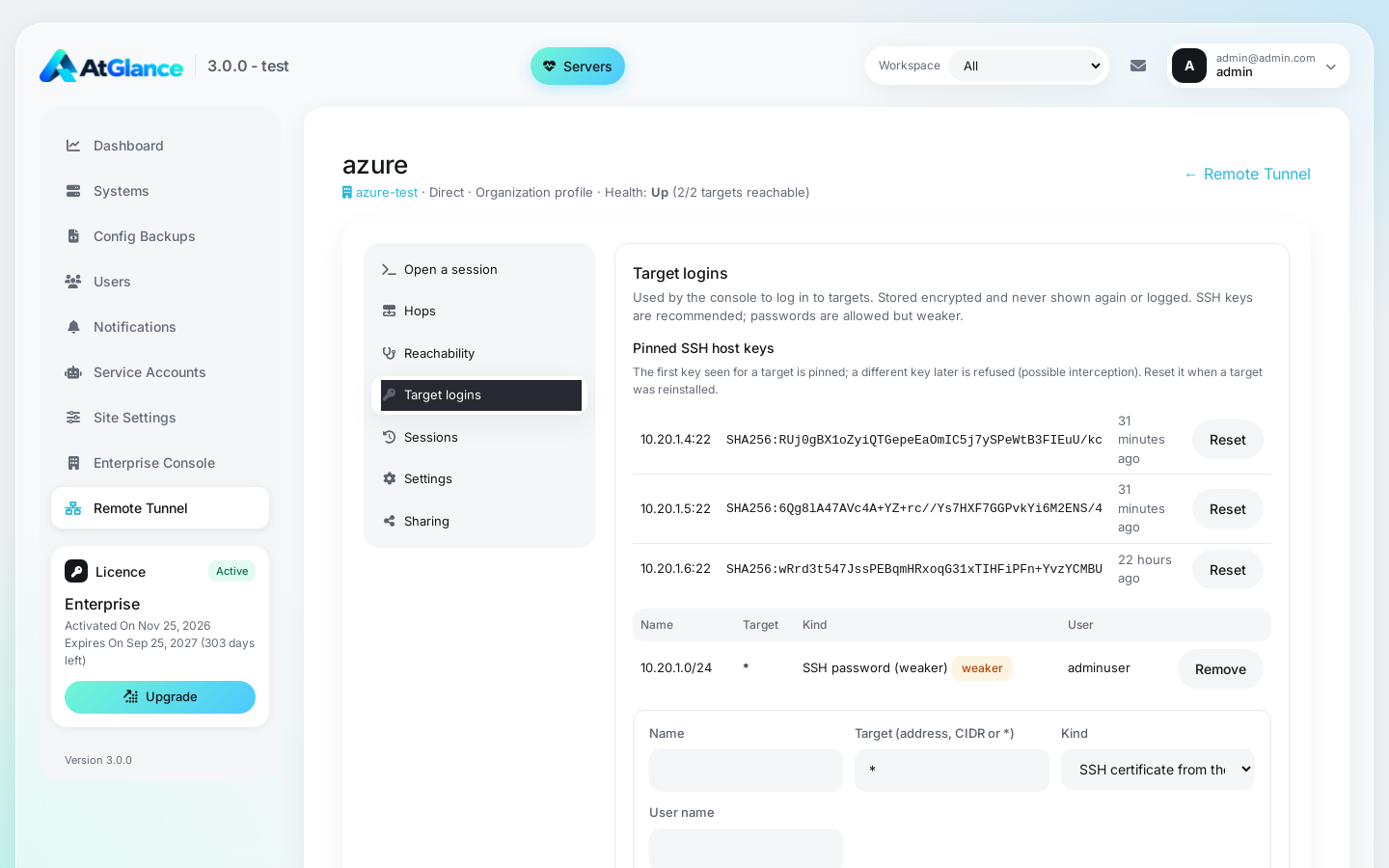
Target logins tab: one login for the internal VMs.
- Target: the subnet as a CIDR (
10.20.1.0/24) covers every VM in it, or one address per login. - Kind: SSH certificate from the console CA (recommended), SSH key or SSH password (weaker).
- User:
adminuser(Azure) orubuntu(AWS).
3.5 Confirm the bastion's host key (once)
-
Open a session (3.7). The first try ends with:
hop 1 (bastion <ip>:22): host key SHA256:… not confirmed yet: confirm it on the profile page -
Check the fingerprint on the bastion:
# bash ssh <user>@<bastion-ip> "for f in /etc/ssh/ssh_host_*_key.pub; do ssh-keygen -lf \$f; done" # PowerShell ssh <user>@<bastion-ip> 'for f in /etc/ssh/ssh_host_*_key.pub; do ssh-keygen -lf $f; done' -
On the Hops tab, the bastion row shows "Host key to confirm: SHA256:…". If it matches a line from step 2, choose Confirm. The row then shows "Host key pinned".
If it does not match, do not confirm: something else answers on that address. The internal VMs' host keys are pinned automatically on the first connection. Reset one under Target logins > Pinned SSH host keys after that VM is rebuilt.
3.6 Optional: trust the console SSH CA (no stored secret)
Copy the CA line from Remote Tunnel > Internal CA, or from the profile's Target logins tab. Then, on the bastion and on every internal VM:
echo 'ssh-ed25519 AAAA… atglance-console-ca' | sudo tee /etc/ssh/atglance_ca.pub
echo 'TrustedUserCAKeys /etc/ssh/atglance_ca.pub' | sudo tee -a /etc/ssh/sshd_config
sudo systemctl reload ssh
Then switch the hop to SSH certificate, and the target login to SSH certificate from the console CA.
Each certificate is valid for 5 minutes and names the console user, so sshd's log on the VM shows who logged
in.
3.7 Open a session
Open a session tab:
- Choose a type: Terminal, Files (SFTP), Web page (HTTP) or TCP forward.
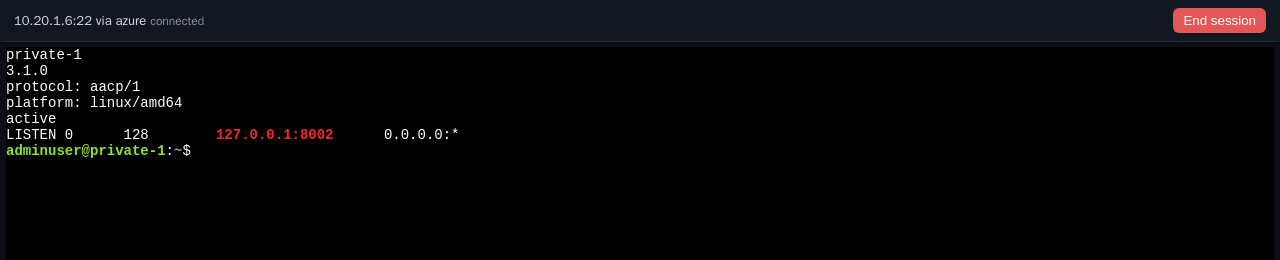
- Enter the target address (a private IP, for example
10.20.1.6) and port22. - Choose the SSH login, then open the session.
The terminal opens in the browser. The path is: tunnel service, then the bastion, then the VM. The session appears under Sessions and in the activity log.
3.8 Check and troubleshoot
- Reachability tab: probes each target through the hop and names the failing step.
- Site > Diagnostics: licence, tunnel service, hops and targets in one list.
| Message | Fix |
|---|---|
… is not in this profile's allow-list |
Add the network (or the bastion's /32) to the profile's allow-list in Settings. Open the session to an internal VM, not to the bastion, unless the bastion is in the list |
host key SHA256:… not confirmed yet |
Confirm it on the Hops tab (3.5) |
host key mismatch |
The bastion was rebuilt, or another host answers. Check the fingerprint, then delete and add the hop again |
hop 1 (bastion …): SSH: unable to authenticate |
Wrong user, password or key. On AWS the user is ubuntu and only keys work |
hop 1 (bastion …): dial tcp …: i/o timeout |
The NSG or security group does not allow your console's public IP on port 22, or the VM is stopped |
| Target times out after the bastion | The NSG or internal-sg does not allow port 22 from the bastion. Check the private IP |
| "Remote Tunnel service unavailable" | ce-atglance-remote-tunnel is stopped: docker exec ce-atglance-controller php artisan tunnel:plugin on |
Internal VMs reaching the console
The bastion hop works in one direction only: the console reaches the VMs. For the VMs to reach the console
(the atglance CLI, sudo atglance system register, agents), use an Agent Tunnel connector:
-
The console's tunnel service must be reachable from the cloud on
TUNNEL_PORT(8443): a public IP or host name, or a published gateway (Published gateway). In.env:TUNNEL_PUBLIC_NAMES=console.example.com ATGLANCE_TUNNEL_PUBLIC_URL=wss://console.example.com:8443Then add
docker-compose.tunnel-connectors.ymlto the compose command. -
Add an Agent Tunnel profile to the same Site, with the same allow-list.
-
Choose Add connector, and install the connector on one VM (the bastion is fine).
-
On the Site page, switch on Console access.
-
The VMs then use
<connector VM private IP>:8000for the web console and API, and<connector VM private IP>:8002for the CLI.
See Agent Tunnel setup.
Security
- Allow port 22 of the bastion only from your console's public IP, never from
0.0.0.0/0or*. - Prefer the console SSH CA or SSH keys over passwords.
- Credentials are stored encrypted. They are sent only to the tunnel service, with each session, and never appear in logs.
- Remove test environments when done (
terraform destroy, or delete the resource group or VPC).
See also: Add servers without a public IP, Remote Tunnel overview, Bastion and proxy hops, Agent Tunnel setup.