
Reverse tunnel
Connect servers that cannot reach the console — private VMs behind a bastion, a data centre without a route back, or a console with no address they can use (on a laptop, or in a private network) — and register them with live monitoring, without opening any port.
The console can reach those servers (for example through a bastion), so it does the work: it logs in to each
server over SSH, keeps that connection open, and makes the console available on the server's own
127.0.0.1. The atglance CLI and the agent there use http://127.0.0.1:8002 as the console address.
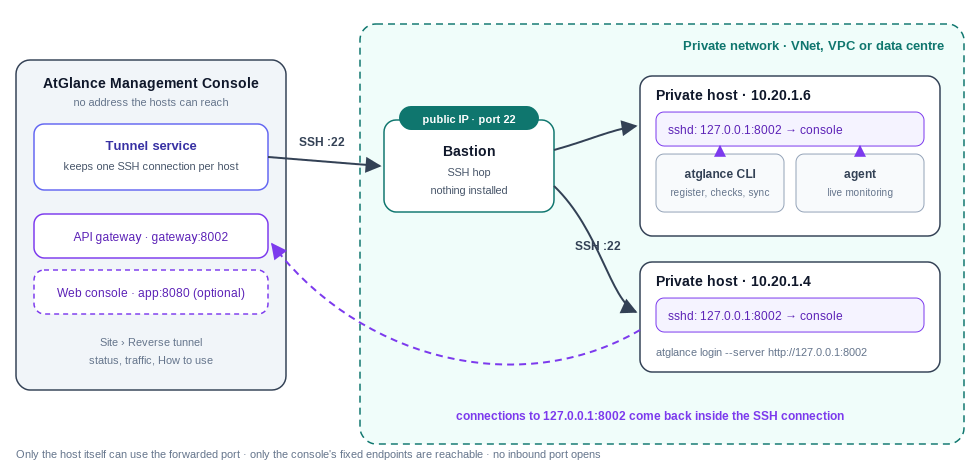
- Nothing to install in the remote network and no inbound port on either side.
- Only the server itself can use the forwarded port (
127.0.0.1);sshdneeds no change. - Only the console's fixed endpoints are reachable through it: the API gateway (CLI and agents) and, if you switch it on, the web console.
- Kept open: keepalives every 30 seconds, and a new login after a drop (5 to 60 seconds later).
- Needs console 3.0.0 or later with Remote Tunnel licensed and switched on.
When to use it
| Your situation | Use |
|---|---|
| The servers can reach the console's address | Nothing extra: atglance login --server <console> |
| The console reaches the servers (bastion, VPN, peering), but they cannot reach it | Reverse tunnel (this page) |
| Neither side can reach the other | Agent Tunnel through a published gateway |
The five steps
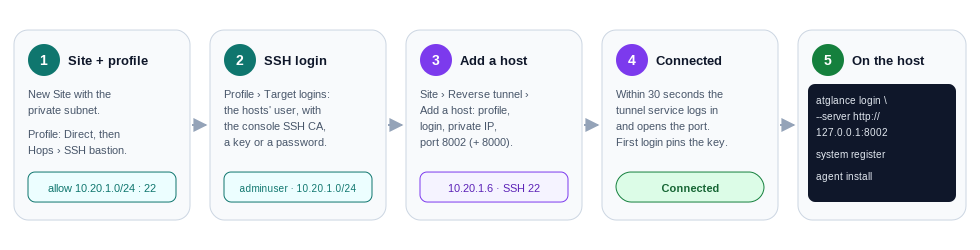
1. A Site and a profile that reach the servers
In the console, Remote Tunnel:
- New Site: a name and the servers' subnet, for example
10.20.1.0/24. - New profile, type Direct, for that Site. In the allow-list, enter the subnet and port
22. - On the profile page, Hops › SSH bastion: the bastion's public IP, port
22, its user and login. - Open one session to a server and confirm the bastion's host key on the Hops tab.
The full walk-through with Azure and AWS networks: Bastion in Azure or AWS. Any profile that reaches the servers works, including an Agent Tunnel profile.
2. An SSH login for the servers
On the profile page, Target logins:
- Target: the subnet (
10.20.1.0/24) covers every server in it. - Kind: an SSH certificate from the console CA (recommended: nothing secret is stored), an SSH key, or a password.
- User: the servers' admin user, for example
adminuser(Azure) orubuntu(AWS).
3. Add each server to the reverse tunnel
Open the Site and choose the Reverse tunnel tab. The How to use button opens this page.
Under Add a host:
| Field | Example |
|---|---|
| Connection profile | azure → bastion 20.219.25.174:22 |
| SSH login | azure: adminuser@10.20.1.0/24 |
| Host address | 10.20.1.6 (the server's private IP) |
| Name | private-1 (optional) |
| SSH port | 22 |
| Port on the host for the CLI and agent | 8002 |
| Also the web console | off, or a port such as 8000 |
Choose Add host. Repeat for each server; the bastion itself can be added too.
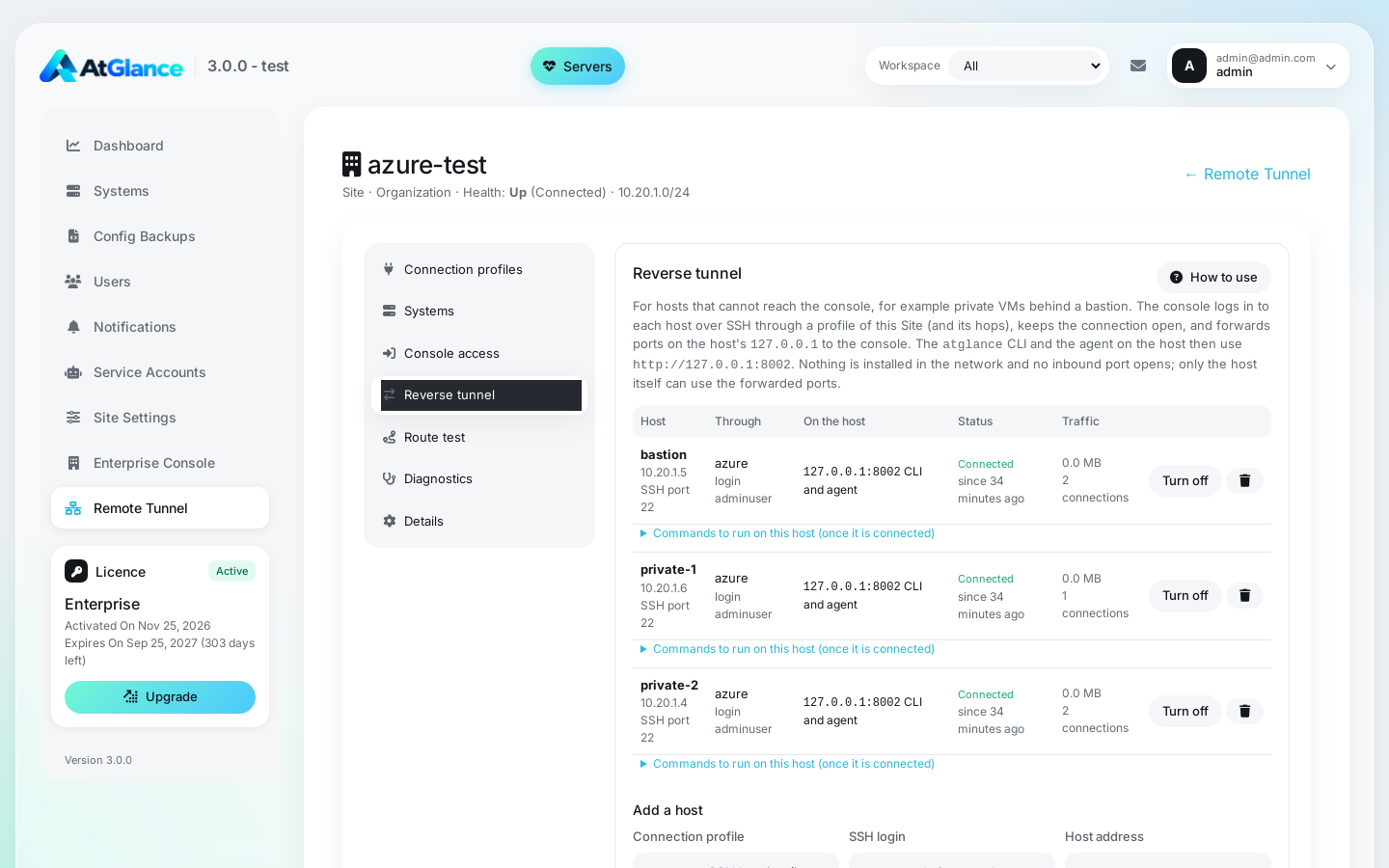
4. Wait for "Connected"
Within 30 seconds the tunnel service logs in and opens the port. The tab shows each server's status, updated every 15 seconds:
| Status | Meaning |
|---|---|
| Waiting for the tunnel service | Just added; picked up at the next refresh |
| Connecting | Logging in, or waiting before the next try |
| Connected | The port is open on the server |
| Error | The message names the failing step (hop, login, port) |
| Off | Turned off on this tab |
The first connection pins the server's SSH host key, like a terminal session.
5. Register the server and start the agent
Each server row has Commands to run on this host. Open a terminal on the server (profile page › Open a session › Terminal, or your own SSH) and run them:
sudo atglance login --server http://127.0.0.1:8002
# API token (atgla-...): a key from the console, Settings › API keys
sudo atglance system register --ip 10.20.1.6
sudo atglance agent install && sudo atglance agent start
--iprecords the server's real address; through the tunnel the console would see127.0.0.1.- The agent takes its address from the login:
ws://127.0.0.1:8002/agent/v1/connect.
A Remote Tunnel terminal on private-1 after the setup: the agent is active and the reverse tunnel's port listens on the host's loopback.
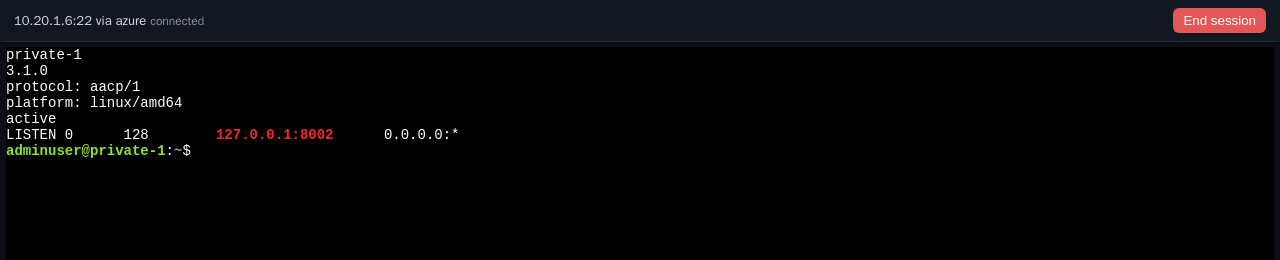
Check:
atglance whoami
sudo atglance agent status     # Connection: connected
The server appears under Systems, and with the agent under Servers (live monitoring).
Day to day
- Turn off / Turn on a server on the Reverse tunnel tab: the connection closes or opens within 30 seconds. The CLI and the agent on that server cannot reach the console while it is off.
- Remove a server: the same, and it is taken out of the list. Deleting its profile or Site removes it too.
- Turning Remote Tunnel off in Plugins, or a licence without it, closes every reverse tunnel.
- Adding, turning off and removing are recorded in the activity log.
Troubleshooting
| Message on the tab | Fix |
|---|---|
hop 1 (bastion …): host key SHA256:… not confirmed yet |
Confirm the bastion's key on the profile's Hops tab |
hop 1 (bastion …): SSH: unable to authenticate |
The bastion hop's user, key or password |
SSH login failed |
The server's Target login: user, key, password, or the console CA trusted with TrustedUserCAKeys |
the target's SSH host key changed |
The server was rebuilt: reset its key under Target logins › Pinned SSH host keys |
the host refused port 8002 on 127.0.0.1 |
Something else uses that port on the server, or sshd has AllowTcpForwarding no. Choose another port, or allow forwarding |
target not in the profile's allow-list |
Add the server's network and SSH port to the profile's allow-list |
Connected, but atglance login fails |
Use http://127.0.0.1:<port> with the port shown on the tab, on that server itself |
Security
- The servers can reach only the console's API gateway (and the web console if you enabled it), and only from their own loopback.
- Logins are stored encrypted and go only to the tunnel service. With the console SSH CA nothing secret is stored, and each login uses a new 5-minute certificate.
- To limit what the login may forward on a server, add
PermitListen 127.0.0.1:8002to itssshd_config.
See also: