
Add servers behind a bastion or without a public IP
How to add servers to the console when they have no public IP address, or when you reach them only through a bastion (jump host). For example: the internal VMs of an Azure VNet or AWS VPC, or a data centre behind a firewall.
The servers never need a public IP. They always connect out to the console:
- The
atglanceCLI (login,system register, checks and sync) uses the console's API gateway on port 8002. - The agent (live monitoring, AtGlance 3.0) connects to
/agent/v1/connecton the console's web port.
What matters is how a server can reach the console. The bastion is only how you log in to the server to run the commands.
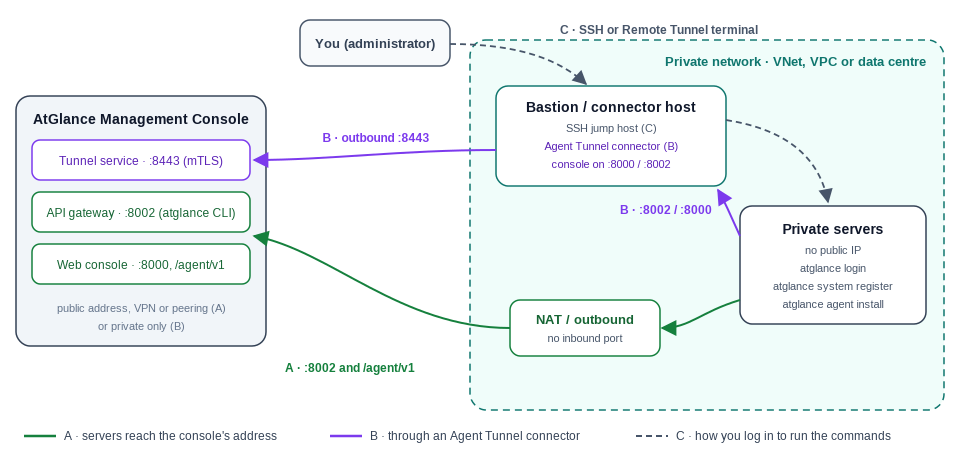
Pick a way
| Your situation | Use |
|---|---|
| The servers have outbound Internet (NAT gateway) and the console has a public address, or the networks are linked (VPN, peering, ExpressRoute, Direct Connect) | A. Direct to the console |
| The console is private (no public address), or the servers may not reach it directly | B. Through an Agent Tunnel connector |
| The console reaches the servers (for example through the bastion), but they cannot reach it | Reverse tunnel: the console keeps an SSH connection to each server; nothing to install or open |
In both cases, use C to get a shell on the servers.
Step 1: Log in to the server (C)
Choose one:
-
Your own SSH, through the bastion:
ssh -J <user>@<bastion-public-ip> <user>@<server-private-ip> -
A Remote Tunnel terminal in the console, with no SSH client on your machine: a Direct profile with the bastion as an SSH hop, then Open a session › Terminal to the server's private IP. Setup: Bastion in Azure or AWS.
Then install the atglance CLI on the server: see the CLI reference.
Step 2A: Direct to the console
-
The server must reach the console's address on port 8002. Test it from the server:
curl -sS -o /dev/null -w '%{http_code}\n' http://<console-address>:8002/Any HTTP status (for example
404) means it is reachable; a timeout means it is not. -
Log in and register:
sudo atglance login --server http://<console-address>:8002
# API token (atgla-...): paste a key from the console (Settings › API keys)
sudo atglance system register
Use
https://when the console's address has a certificate. -
Optional: live monitoring. The agent connects to the console's agent address (
wss://<console>/agent/v1/connect), so the server must reach it too:sudo atglance agent install
Cloud firewalls: allow outbound TCP 8002 (and 443 or 8000 for the agent) from the servers. Nothing inbound is needed on the servers.
Step 2B: Through an Agent Tunnel connector
The connector is a small service on one host in the private network, for example the bastion. It dials the console's tunnel service outbound (TCP 8443, mutual TLS), and offers the console inside the network on its own ports 8000 (web console and API) and 8002 (the CLI's API).
-
Make the tunnel service reachable from that network: the console's tunnel port (8443) on a public address or a published gateway. On the console, in
.env:TUNNEL_PUBLIC_NAMES=console.example.com ATGLANCE_TUNNEL_PUBLIC_URL=wss://console.example.com:8443Start the console with
docker-compose.tunnel.ymlanddocker-compose.tunnel-connectors.yml. See Published gateway when the console itself stays private. -
Create the Site and an Agent Tunnel profile (Remote Tunnel › New Site, then New profile › Agent Tunnel) with the servers' subnet in the allow-list, for example
10.20.1.0/24ports22,443. -
Install the connector on the bastion (or another host in the network): profile › Add connector, then run the command the console shows. See Agent Tunnel setup.
-
Switch on Console access on the Site page: Web console and API (port 8000) and Agent API (port 8002).
-
Allow the servers to reach the connector host on TCP 8000 and 8002 inside the network:
- Azure: an NSG rule from
VirtualNetworkto the connector VM, ports 8000 and 8002; - AWS: on the connector instance's security group, allow 8000 and 8002 from
internal-sg.
- Azure: an NSG rule from
-
Log in and register each server through the connector:
sudo atglance login --server http://<connector-private-ip>:8002
sudo atglance system register
The CLI's scheduled checks and sync keep using that address. The servers never learn the console's own address, and no inbound port opens on the servers or on the console's network.
Live monitoring agents connect to the console's agent address, which the console sets for all agents. Through a connector this path is not supported yet: use way A for servers that run the agent.
Step 3: Check
- On the server:
atglance whoamishows the console and your user;atglance system statusshows the registration. - In the console: the server appears under Systems. With the agent, it appears under Servers.
- With a connector: the Site page shows the Console access connection count and traffic.
Troubleshooting
| Problem | Check |
|---|---|
atglance login times out |
The server cannot reach that address on 8002. A: the NAT gateway or route, and the outbound firewall. B: the connector host's firewall allows 8000 and 8002 from the servers, and Console access is on |
401 or "invalid token" |
Create a new API key in the console (Settings › API keys) and log in again |
| The connector is Offline | It cannot reach ATGLANCE_TUNNEL_PUBLIC_URL on 8443: run atglance-connector diagnose on the connector host |
| Registered, but the agent never connects | The server cannot reach the console's agent address. Use way A for that server |
| You cannot log in to the server | Step 1: the bastion's firewall allows port 22 from your address; for a Remote Tunnel terminal, the host key is confirmed and the server is in the profile's allow-list |
See also: